

Quick Controls
- WASD or arrow keys → Move. Your movement affects the pace of the encounter.
- Left mouse button → Pick up / shoot. Check whether you are holding a weapon.
- Right mouse button or R → Throw your weapon. R does not reload it.
High Score Tips
- Find an available weapon and check the route before walking toward it.
- Look for an attack already approaching you before choosing a target.
- After changing position, check which enemies now have a clear shot.
Clear a room of enemies by controlling your movement, reading incoming fire, and using the weapons you find.
- Developer
- GoGoMan
- Classification
- Slow Motion
- Gameplay tag
- Bullet Time
About Time Shooter 2
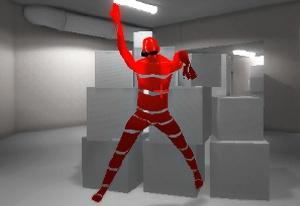
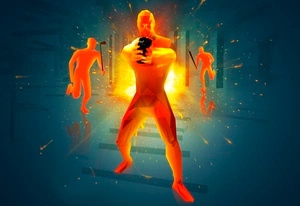
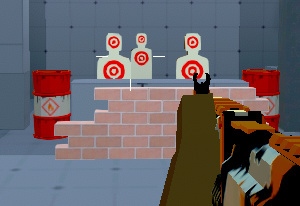
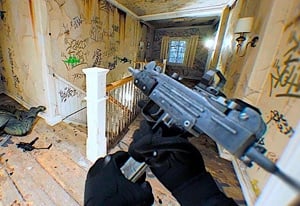
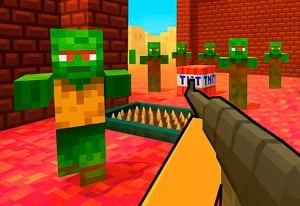
Time Shooter 2 is a first-person shooting game in which movement changes the pace of combat. Staying still gives you a chance to examine the room and the bullets around you; moving advances the encounter. Your goal is to work through each room, use the weapons you find, and eliminate the enemies without being hit.
For a first attempt, focus on three things: the weapon you can reach, the attack closest to becoming dangerous, and where your next step will leave you. Those questions turn a crowded room into a sequence of smaller choices. A clear shot at one opponent may still expose you to another, so choosing where to stand matters alongside choosing where to aim.
The slow pace gives you time to read a situation, but your plan still has to work once you move. Pick a reachable stopping point, watch the path of incoming fire, and reconsider the room after each exchange. The next useful action might be taking a shot, moving away from a bullet, or reaching a different weapon.

How to Play Time Shooter 2
Your objective is to eliminate the enemies while avoiding their attacks. Use this sequence to organize an unfamiliar room:
- Inspect the opening. Locate a reachable weapon, nearby enemies, and any visible incoming fire. Decide where you want to stop before you start crossing the room.
- Get equipped. Approach the weapon and use left-click to pick it up. Check what you are holding before trying to fire, because the same button performs both actions.
- Choose a position and target together. Move far enough to create a useful line to an enemy. Include the other attackers and any projectiles that could reach your chosen position.
- Reassess as the fight changes. Fire with left-click, look for the next threat, and decide whether to stay with your current weapon or move toward another one. Continue until the room is clear.
For example, a weapon may be visible across an open part of the room while an enemy is already preparing an attack. Before heading straight for the pickup, look at the attack's direction and choose a point where you can stop and reassess. A shorter approach gives you a chance to see how the encounter has changed before committing to the rest of the route.
Once you have a weapon, aim at a target you can actually reach from your position. After firing, look beyond that opponent: another enemy may have a clear view of the place you just moved into. Your next decision should account for the whole room, not only whether the last shot connected.
Controls & Timing
A step changes more than your position
Movement also advances the surrounding fight. Before crossing an opening, look at both the destination and the attacks along the way. Choose a short movement with a clear purpose, such as reaching a weapon or changing the angle on an enemy. Once you reach a useful position, take another look instead of continuing the same movement automatically.
Picking up and firing share a button
Left-click serves two actions. If a click equips a weapon, check that change before assuming you have already fired at an opponent. This matters when an enemy and a collectible weapon are close together in your view: first recognize what is in your hands, then line up the shot you intend to take.
Throwing creates a follow-up decision
Right-click and R discard the held weapon. Before using either, identify what you intend to pick up next and how you will reach it. An accidental press of R can interrupt an otherwise workable attack plan. Treat the throw, the route to the replacement, and the next shot as connected parts of the same decision.
A visible bullet helps you choose a route
Look at the projectile's path and the space around it before moving. Choose a direction that takes you away from the attack while leaving a useful place to stop. After the movement, check for another projectile or enemy before committing to the next step; avoiding one line of fire does not automatically clear the rest of the room.
Controls
These controls are for a keyboard and mouse.
| Input | Action | When to use |
|---|---|---|
| WASD or arrow keys | Move | Reach a weapon or change your angle on an enemy. |
| Left mouse button | Pick up / shoot | Collect a weapon, then fire when equipped. |
| Right mouse button or R | Throw the held weapon | Discard it deliberately when changing your plan. |
Keep movement and weapon handling separate in your plan. Use WASD or the arrow keys to reach the position you chose, then use left-click for the pickup or shot you intend. If you need to throw a weapon, use right-click or R deliberately; pressing R out of habit will throw it rather than reload it.
High Score Tips
- Choose a first route you can explain. Identify the weapon you want and the place where you will stop. Look for an incoming attack along that path before moving. A destination and stopping point give you a way to reassess before a long approach becomes difficult to change.
- Compare immediate danger with distant fire. A gun carrier across the room deserves attention, but a projectile already close to your position may need the first response. Decide which threat can affect your next movement, then arrange the shot or dodge around it.
- Check the angle after a successful shot. Eliminating one enemy can make it tempting to rush onward. Look for the next attack before following through, particularly if your last move exposed a different side of the room. The position that worked for one target may be less useful against the next.
- Plan the replacement before throwing. Find another weapon and inspect the route to it while you still have an option in hand. If reaching the pickup would cross an incoming shot or expose you to another attacker, adjust the route or deal with that threat first.
- Make a plan for empty hands. If you do not have a weapon, choose a reachable pickup and check the path to it before moving. Once you have collected it, identify the next target and use left-click for the shot. Separating the pickup from the attack helps you recognize which action the button will perform.
- Review one mistake on the next attempt. Identify whether the problem was the route, the target order, or an unintended weapon throw. Change that decision first and compare the result. Keeping the rest of the approach familiar makes it easier to see what helped.
Key Features
- First-person encounters: Judge the scene from your character's position and check threats beyond the target in front of you.
- Readable incoming fire: Visible projectiles give you information for planning a dodge.
- Weapons within the scene: Equipment location affects the route through a room.
- A compact control scheme: Movement, pickup, shooting, and throwing cover the core actions; remembering each button's role helps avoid unnecessary mistakes.
- Changing target priorities: A nearby projectile and a distant armed enemy can require different responses depending on your position.
- Repeatable decision-making: Each attempt gives you a chance to adjust a route, a stopping point, or the order in which you handle threats.
Frequently Asked Questions
How does movement affect time in Time Shooter 2?
Movement changes the pace of the encounter. Staying still gives you time to inspect enemies and projectiles, while moving advances the fight. Use that slower moment to choose a destination and account for incoming attacks before taking the next step.
How do I dodge bullets?
Look at the visible projectile and choose a movement away from its path. Plan where you will stop as well as which direction you will take: the new position may expose another line of fire. Recheck the room before continuing toward a weapon or target.
Why does pressing R make me lose my gun?
R is the throw command in Time Shooter 2. If you are used to using it to reload in another shooter, pause that habit here. Look for another reachable weapon before deliberately throwing the one you hold.
Do I need to install a separate application?
The game is embedded in this browser page, so a separate application is not required. Game files still need to load over your connection. Loading time can vary, especially when opening the game for the first time.
Is there a final level to complete?
The levels continue without a set final room. A useful goal for a session is to clear the next encounter while correcting one recurring mistake, such as rushing a pickup or throwing away a weapon you meant to fire.
Is TimeShooter2.io the developer's official website?
TimeShooter2.io is an independent fan site. GoGoMan developed Time Shooter 2. You can read about this site's role on the About page, or use Contact to report a problem with a page or its instructions.